|
<< Click to Display Table of Contents >> Virola Server and Administration > Server configuration > Virola User Roles > Admin role |
General
By default there is one admin profile which is created automatically when you register the Virola cloud or set up the server version. You use this profile to log into Virola client first time.
The admin rights include:
•An ability to assign admin role to any Virola user
•Resuming suspended accounts
•Updating all user profiles
•Assigning moderator role for meeting rooms
•Assigning tasks and issues
•Scheduling meetings
•Enabling / Disabling push notifications
•Configuring Directory server options
•Configuring Server SSL options
•Checking Virola License
To activate the admin role for a user you need to do the following:
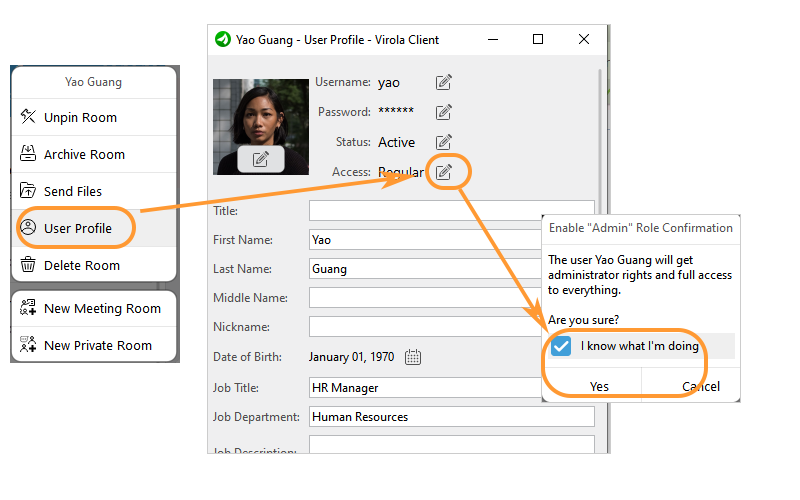
Assigning admin role to a user
1.Right click on a user in the users or chats list
2.Select "User Profile" option
3.Click "Edit" icon next to the "Access"
4.Confirm granting admin rights to a user
5.Click "Yes" to save changes
Managing permissions
In Virola client as administrator you can manage user permissions and set them for all app users, for chat room users or personally per user.
To manage permissions follow Administrator / Permissions menu:
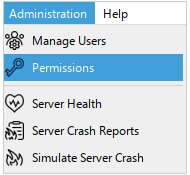
Managing user permissions menu